---
title: "Configure with Azure DevOps"
description: "Connect Baz to your Azure DevOps organization and repositories."
---
Baz connects to Azure DevOps in one of two ways:
* **Microsoft OAuth** (recommended) - you sign in with Microsoft and Baz acts through a service principal in your Azure DevOps organization.
* **Personal Access Token (PAT)** - you paste a token from a dedicated Azure DevOps account. Use this when your Azure DevOps organization is not backed by Microsoft Entra ID, or when you prefer Baz to act as an account you control.
Both options are available from the **Connect Azure DevOps** modal on the Integrations Page, with OAuth as the default.
## Connect with Microsoft OAuth
### Required permissions
The person who connects Azure DevOps must be a **Project Collection Administrator (PCA)** of the Azure DevOps organization.
Baz needs that level because connecting does two things a regular member cannot do:
* It adds Baz's service principal to your organization, which is an organization-level entitlement change.
* It registers service hook subscriptions on the projects you select, which requires the **Edit subscriptions** permission held by project administrators.
You can check or grant this in **Organization Settings > Permissions > Project Collection Administrators**.
### Authorize Baz
After successfully authenticating, you will be redirected into your private Baz workspace. Select **Sign in with Microsoft** to connect your Azure DevOps account.
_Note: If your Azure DevOps admin already integrated your organization, you will be able to select it from the organization navigation menu._
You will be redirected to Microsoft's permissions page. Review the requested permissions and click **Accept** to authorize Baz.
Baz uses this connection to access your Azure DevOps organization, repositories, pull requests, work items, projects, teams, and related review activity.
## Connect with a Personal Access Token
Choose this option when your Azure DevOps organization is not backed by Microsoft Entra ID, or when you want Baz's activity attributed to an account you manage.
### Create a service account
1. Invite a dedicated Azure DevOps user for Baz, for example `baz-service@yourcompany.com`, from **Organization Settings > Users**.
2. Assign it a **Basic** access level. Stakeholder does not include Azure Repos access.
3. Grant it access to the projects Baz should review:
* **Specific projects (recommended):** add it to **Project Administrators** in **Project Settings > Permissions** for each project.
* **All projects:** add it to **Project Collection Administrators** in **Organization Settings > Permissions**.
Project Administrator is the minimum, not Contributor, because Baz registers service hook subscriptions on your behalf and that needs the **Edit subscriptions** permission.
### Generate the token
Sign in to Azure DevOps as the service account, open **User settings > Personal access tokens**, and select **New Token**.
* **Organization:** the organization you are connecting. Baz does not require an all-organizations token.
* **Expiration:** set the longest window your policy allows. Baz cannot read a token's expiry, so track the renewal date yourself; the integration starts failing with authentication errors once the token expires.
* **Scopes:** select **Custom defined** and enable:
| Scope | Why Baz needs it |
| --- | --- |
| Code (Read & write) | Read repositories and pull requests, post comments, replies, and votes |
| Code (Status) | Publish review status back to pull requests |
| Work items (Read) | Attach Azure DevOps Boards context to reviews |
| Project and team (Read) | List the projects and repositories you can select |
| Graph (Read) | Onboard your organization's users and their permissions |
| Identity (Read) | Resolve group memberships to users |
| Service hooks (Read, write, & manage) | Register and clean up the webhooks Baz needs |
| User profile (Read) | Identify the account the token belongs to |
### Connect it in Baz
1. Go to **Settings > Integrations** and open the Azure DevOps card, or start the Azure DevOps onboarding flow.
2. In the **Connect Azure DevOps** modal, expand **Connect with a Personal Access Token instead**.
3. Enter your **Organization URL**, for example `https://dev.azure.com/your-organization`, and paste the token.
4. Click **Connect with token**.
Baz validates the token against your organization and then shows the projects that account can see. If a project is missing from the list, the service account has not been added to it yet.
From here, skip ahead to [Select Repositories](#select-repositories). The **Create or Select Organization** and **Connect Azure DevOps Repositories** steps below belong to the Microsoft OAuth flow; connecting with a token completes both at once.
## Create or Select Organization
_This step applies to the Microsoft OAuth flow only._
After authorization, Baz will redirect you back to the onboarding flow.
If this is a new workspace, give your Baz organization a name. If you expect to be part of an existing organization, reach out to your organization admin.
## Connect Azure DevOps Repositories
_This step applies to the Microsoft OAuth flow only._
Baz will ask you to connect to your Azure DevOps repositories.
Click **Connect to Azure DevOps**. You will be redirected to Microsoft to approve the connection if needed, then returned to Baz.
## Select Repositories
Baz will show the repositories available from your Azure DevOps organization.
Select the repositories Baz should access and click **Continue**.
Repository names are shown in this format:
```
//
```
## Selecting Projects and Repositories
Azure DevOps organizations can span many projects and repositories, and admins do not need to grant Baz access to all of them. Admins can scope an Azure DevOps connection to specific projects and repositories instead of the entire account.
During onboarding, or when reconfiguring the integration later, admins can open the project and repository picker to choose exactly which Azure DevOps projects and repositories Baz should have access to. Selections are organized by project, so an admin can grant Baz access to a handful of repositories in one project while leaving other projects untouched.
Baz keeps webhook coverage aligned with this selection automatically. When a repository is added to the selection, Baz registers the webhooks it needs to detect pull requests and review activity in that repository. When a repository is removed from the selection, Baz cleans up the webhooks it previously registered there. Admins do not need to manage webhooks manually in Azure DevOps.
Only Azure DevOps admins can change the project and repository selection.
_Note: If you connected Azure DevOps before project-scoped selection was available, you may need to reconnect the integration from the Integrations Page to grant Baz project-scoped access. Reconnecting lets you choose specific projects and repositories instead of the whole organization._
## Code Review Agents
After repository selection, Baz activates the default code review agents for your workspace:
* Code Correctness
* Code Styling
* Security
Click **Continue** to proceed.
## Optional Integrations
You can connect a ticketing system during onboarding to enrich Baz reviews with work item context.
If Azure DevOps is already connected, Baz will show a success state and you can continue to the next step.
## Permission Model
For Azure DevOps repos, Baz can read repository code, pull requests, commits, changed files, comments, threads, reviewers, projects, teams, and work items.
Baz can also post review comments, replies, statuses, and approvals back to Azure DevOps.
What differs between the two connection methods is the identity Baz acts as:
* **Microsoft OAuth:** Baz acts as a service principal that it adds to your organization and entitles per selected project. Connecting requires a Project Collection Administrator, and your organization must be backed by Microsoft Entra ID.
* **Personal Access Token:** Baz acts as the account that owns the token, limited to that token's scopes and that account's project permissions. Baz does not grant or revoke any access in this mode; you manage the service account's project membership in Azure DevOps.
## Reconfiguring
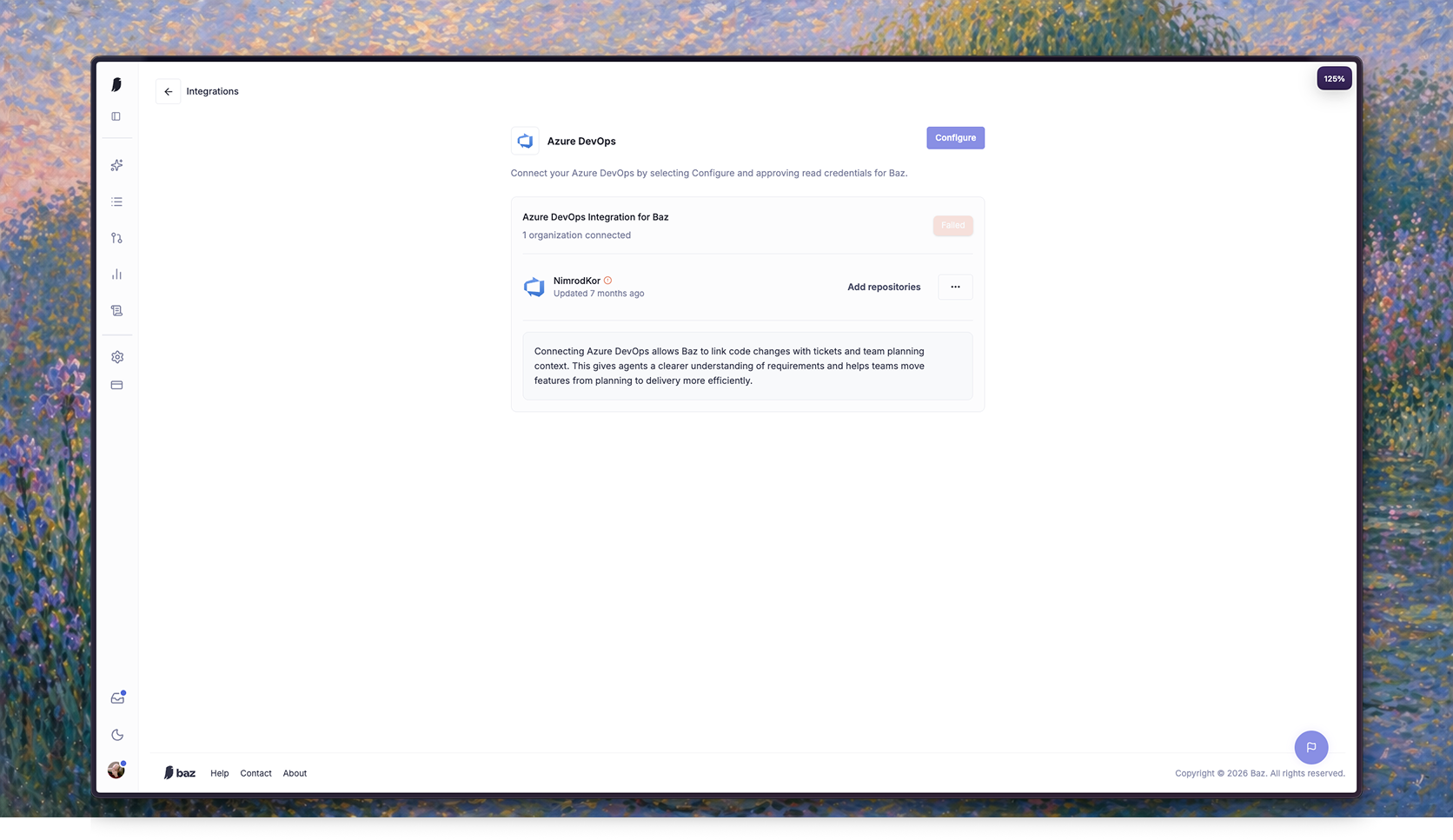
At any point, you can go back and reconfigure Azure DevOps from the Integrations Page.
Use this page to reconnect Azure DevOps, update repository access, or change which repositories Baz should review.
To rotate a Personal Access Token, create a new integration with the new token.
## FAQ
How do I connect Baz to my Azure DevOps repositories?
Either authorize Baz via Microsoft OAuth, selecting which organization and repositories Baz may access, or connect with a Personal Access Token from a dedicated Azure DevOps account. Once connected, Baz will monitor pull requests in the repositories you select.
Can I use a Personal Access Token (PAT) instead of Microsoft OAuth?
Yes. Open the **Connect Azure DevOps** modal and expand **Connect with a Personal Access Token instead**. This is the supported path for Azure DevOps organizations that are not backed by Microsoft Entra ID.
What permissions do I need to connect with Microsoft OAuth?
Project Collection Administrator on the Azure DevOps organization. Baz adds a service principal to your organization and registers service hook subscriptions on the projects you select, and both require that level.
Why did my connection fail with "This action is only supported for Microsoft Entra backed organizations"?
Your Azure DevOps organization is backed by a personal Microsoft account rather than a Microsoft Entra ID directory, so it cannot host the service principal that OAuth mode relies on. Connect with a Personal Access Token instead.
What permissions does the Personal Access Token account need?
A Basic access level, plus Project Administrator on each project Baz should review, or Project Collection Administrator for the whole organization. Project Administrator is required because Baz registers service hook subscriptions.
Can I restrict Baz to only certain repositories?
Yes. During onboarding, and any time after from the Integrations Page, you can select exactly which Azure DevOps repositories Baz should access.