---
title: "Figma"
description: "Baz\u2019s Figma Integration"
---
Design context often drives implementation details - but developers rarely see it during review.\
With Baz’s Figma integration, reviewers can connect design intent directly to code changes. This helps them understand not just _what_ changed, but _why_ it was designed that way.
Baz uses this integration to:
* Link relevant Figma designs to change requests.
* Provide AI reviewers with visual and layout context to improve summaries and topic grouping.
* Surface differences between design updates and implementation changes for better review alignment.
## Configure Figma
Integrate Figma with Baz
### Configuring Baz & Figma
To enable Figma support:
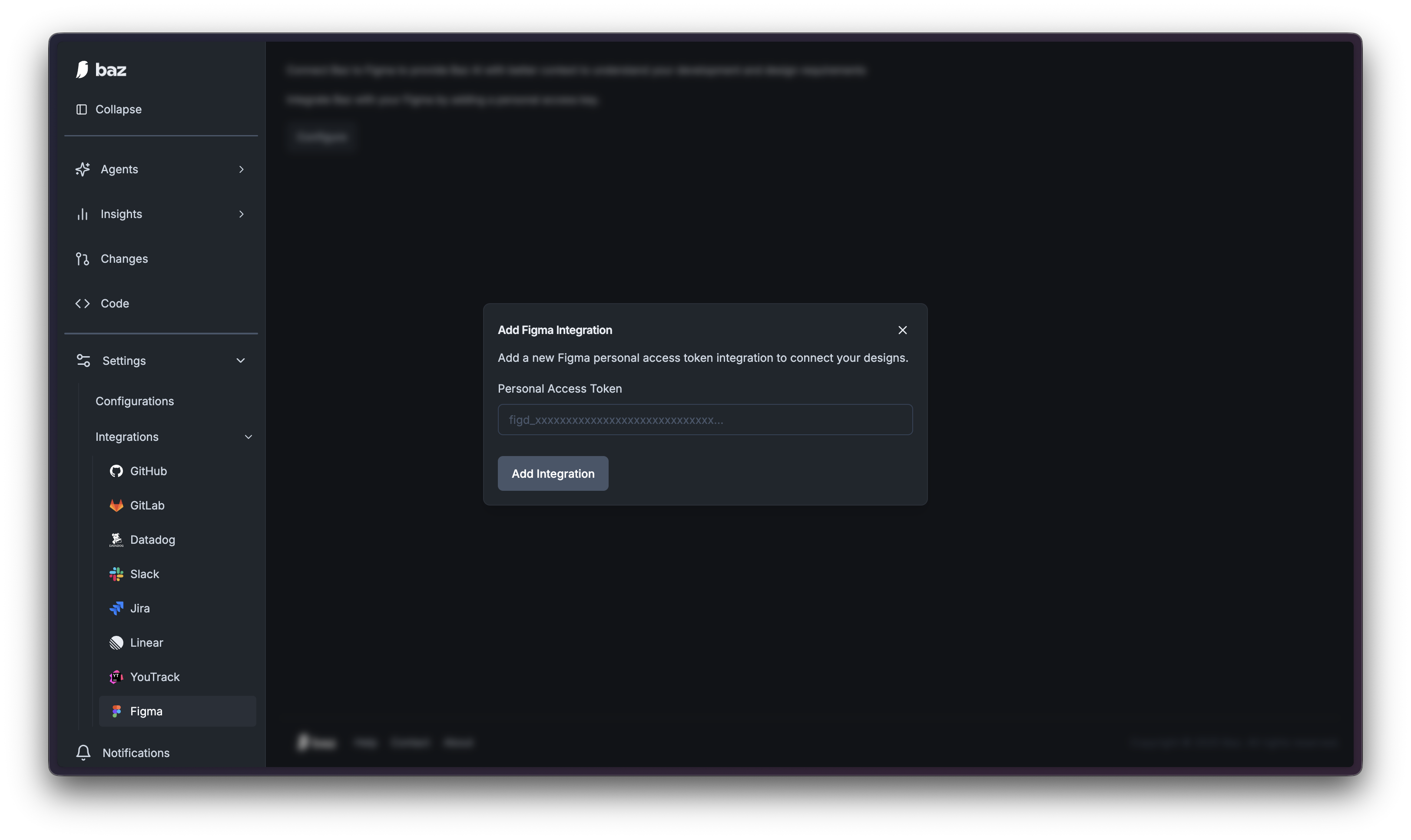
1. Go to **Settings → Integrations → Figma**.
2. Click **Add Integration**.
3. Enter your **Figma Personal Access Token**.\
You can generate this token from your Figma account under **Settings → Personal Access Tokens**.
4. Click **Add Integration** to connect.
## FAQ
What do I need to connect Figma?
A Figma Personal Access Token, generated in your Figma account under Settings, Personal Access Tokens. Add it under Settings, Integrations, Figma.
What does Baz do with design context?
It links relevant designs to a change, gives agents visual and layout context for summaries and topic grouping, and surfaces differences between design updates and the implementation.
Which agent uses this most?
Spec Reviewer. With a design integration connected, its verdict can include visual validation rather than code-only checks. See [Baz Agents](/docs/agents/baz-agents).